
Computer Monitor Support: Follow the Signal to the Screen

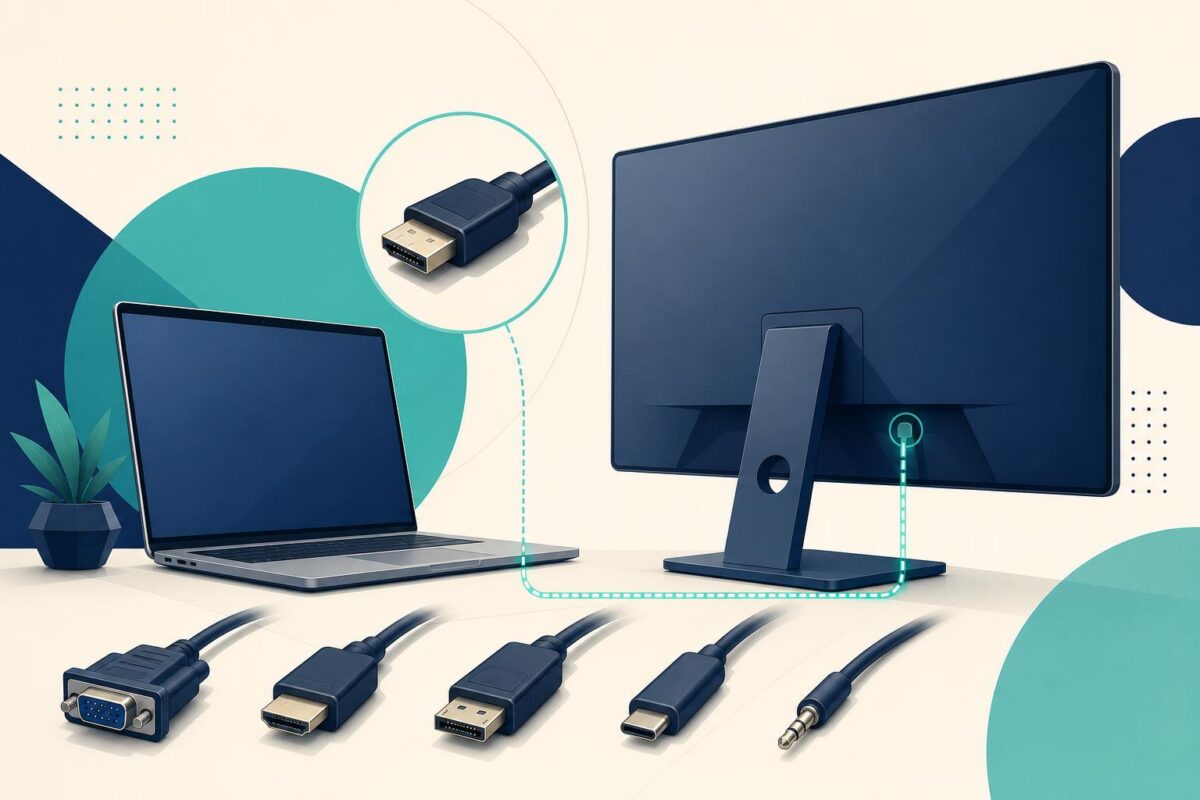
Computer monitor support becomes easier when the agent separates three questions: is the screen powered, is it receiving the intended signal, and is it displaying that signal correctly? A black screen does not answer any of them by itself. Replacing a monitor before following the signal path can leave the customer with the same unresolved setup.
Viewabo can help an agent see the monitor controls, visible cable ends, and surrounding equipment. The useful outcome is shared understanding of the physical arrangement. It is not a remote measurement of image quality or proof that an internal component works.
Computer monitor support needs an exact symptom
Start with what the customer sees. Does the monitor show a menu, a manufacturer logo, an input message, a partial image, or nothing? Ask them to read visible wording rather than paraphrase it as an error. Note whether the issue appears immediately or only after ordinary use.
Next, identify the intended activity. A second work screen, game display, and presentation monitor may use different sources. Samsung’s 2020 Smart Monitor announcement describes a display intended for work, learning, and entertainment. That variety is a reminder to identify the task rather than infer it from the screen.
Agree on one source and one display for the first comparison. This keeps a multiple-monitor setup from obscuring which path is failing.
Our independent Acer support analysis examines why the monitor must be understood in its actual workspace.
Follow the signal from both ends
Ask for a safe view of the cable connection at the monitor and at the source device. Identify any adapter, dock, switch, or extension between them. A cable that disappears behind a desk should not be assumed to connect where the customer expects.
Read labels together and compare the arrangement with the identified equipment’s instructions. Connector shape alone does not establish what a particular port supports. When the path includes several devices, sketch a short sequence in the case notes.
Do not ask the customer to disconnect everything. Instead, choose a single approved check that tests one part of the path. Confirm whether the change will interrupt other work before proceeding.
Distinguish a menu from an incoming picture
If the monitor can display its own menu, that is a useful observation. It does not prove that the cable, source settings, or every display function is correct. Explain what the observation establishes and what remains unknown.
Likewise, a visible picture from one source does not resolve a complaint involving another. Computer monitor support should compare like with like. Keep the same cable and input when possible, or clearly note when the test changes them.
Where a test requires equipment the customer does not own, do not turn that absence into a demand to buy accessories. Record the unresolved branch and decide whether the next step belongs with the computer, dock, or display support team.
Our independent Dell workspace analysis explores the ownership boundary between the dock, computer, display, and peripherals.
Treat image complaints differently
Blur, incorrect proportions, flicker, and color dissatisfaction require more than a power check. Ask when the effect appears and whether it affects the entire image. Compare the displayed content with the customer’s intended use.
A camera view can show an obviously cropped window or wrong input. However, camera exposure and refresh behavior may create artifacts that the customer does not see directly. Never diagnose a panel defect solely from bands or colors in the support view.
For precision color work, the agent should acknowledge the need for appropriate measurement and configuration. Visual support can clarify the setup. It cannot certify a monitor’s color accuracy through another camera.
Keep physical checks safe and reversible
Monitors can be heavy, awkward, or mounted above a desk. Ask the customer to leave a fixed installation alone if reaching its connectors requires unsafe lifting or climbing. An installer can handle access that exceeds a comfortable user task.
Do not recommend opening the casing or touching damaged plugs. If the screen, mount, or power equipment appears damaged, stop the setup checks and follow the service process. Keep sensitive material on the computer screen out of view whenever it is unrelated to the complaint.
The Viewabo vs TeamViewer comparison distinguishes access to a computer screen from observation of the hardware and connections around it.
Before a reset or major display-setting change, explain how the customer will restore a usable picture if the result is worse. Reversible checks preserve both time and confidence.
Verify the real workspace
Once a picture returns, ask the customer to resume the original task. Check the intended source, window placement, readable text, and ordinary reconnect behavior where relevant. A momentary image during troubleshooting is not the same as a functioning work arrangement.
For an intermittent complaint, define what to record if it returns: time, active source, visible message, and whether the monitor menu still appears. That small record is more useful than asking the customer to remember a long troubleshooting history.
Viewabo supports the shared physical view that helps this conversation stay grounded. The broader reasoning appears in why video belongs in customer support. Applied to computer monitor support, the method is simple: name the symptom, follow the signal, explain the limits of each test, and verify the customer’s normal use.